
You wake up expecting your sleep stats, only to find the Pillow app shows nothing. No duration, no deep sleep, no REM cycles. Just an empty screen or an “Insufficient data for sleep detection” message. If your Pillow app is not tracking sleep, the issue is rarely a broken app. More often, it’s a chain reaction: missing permissions, Apple Watch sensor gaps, or sync failures. The good news? Most fixes are quick and within your control. In this guide, you’ll learn exactly why sleep tracking fails, how to diagnose the root cause, and what steps to take immediately to restore full functionality.
Verify Apple Health Permissions
Pillow pulls all sleep data through Apple Health. If permissions are missing, even a perfectly worn Apple Watch won’t help. This is the most common cause of tracking failures.
Enable All Required Data Access
Open Settings on your iPhone and navigate to Privacy and Security, then Health, then Pillow. Turn ON these categories: Heart Rate, Respiratory Rate, Blood Oxygen, Sleep Analysis, Motion and Fitness, and Workout Routes if used. After enabling all permissions, restart your iPhone to ensure the changes take effect.
Recheck via Apple Health App
Open the Apple Health app on your iPhone and tap your profile icon in the top right corner. Scroll down to find Apps and select Pillow from the list. Ensure every toggle is green and enabled. If any are disabled, enable them and restart your device.
Pro Tip: If Pillow doesn’t appear in the Health list at all, reinstall the app. This often fixes invisible permission registration issues that occur after iOS updates.
Confirm Apple Watch Was Worn Overnight
No watch, no data. Pillow cannot track sleep unless the Apple Watch is actually on your wrist throughout the night. This seems obvious, but many tracking failures stem from simply forgetting to wear the watch to bed.
Wear Watch with Proper Fit
Wear the watch snugly, about one finger’s width from your wrist bone. Avoid loose bands that let light leak under the sensor, which can cause inaccurate readings. Position the watch on clean, unobstructed skin for best sensor contact.
Warning: Tattoos or scar tissue under the sensor can block heart rate readings. Rotate the watch to a cleaner spot if needed.
Charge Before Bed
Apple Watch must have at least 20 to 30 percent battery at bedtime. Below 10 percent, it may enter Power Reserve mode, which kills all sensors and prevents any health data from being recorded.
Expert Note: Charge during dinner, not right before bed. A full overnight charge is unnecessary and risks waking up to a dead watch.
Check Apple Watch Data Recording
Even if worn properly, the watch might not record data due to disabled features. Several settings must be enabled for the Apple Watch to capture the physiological data Pillow needs for sleep analysis.
Enable Wrist Detection
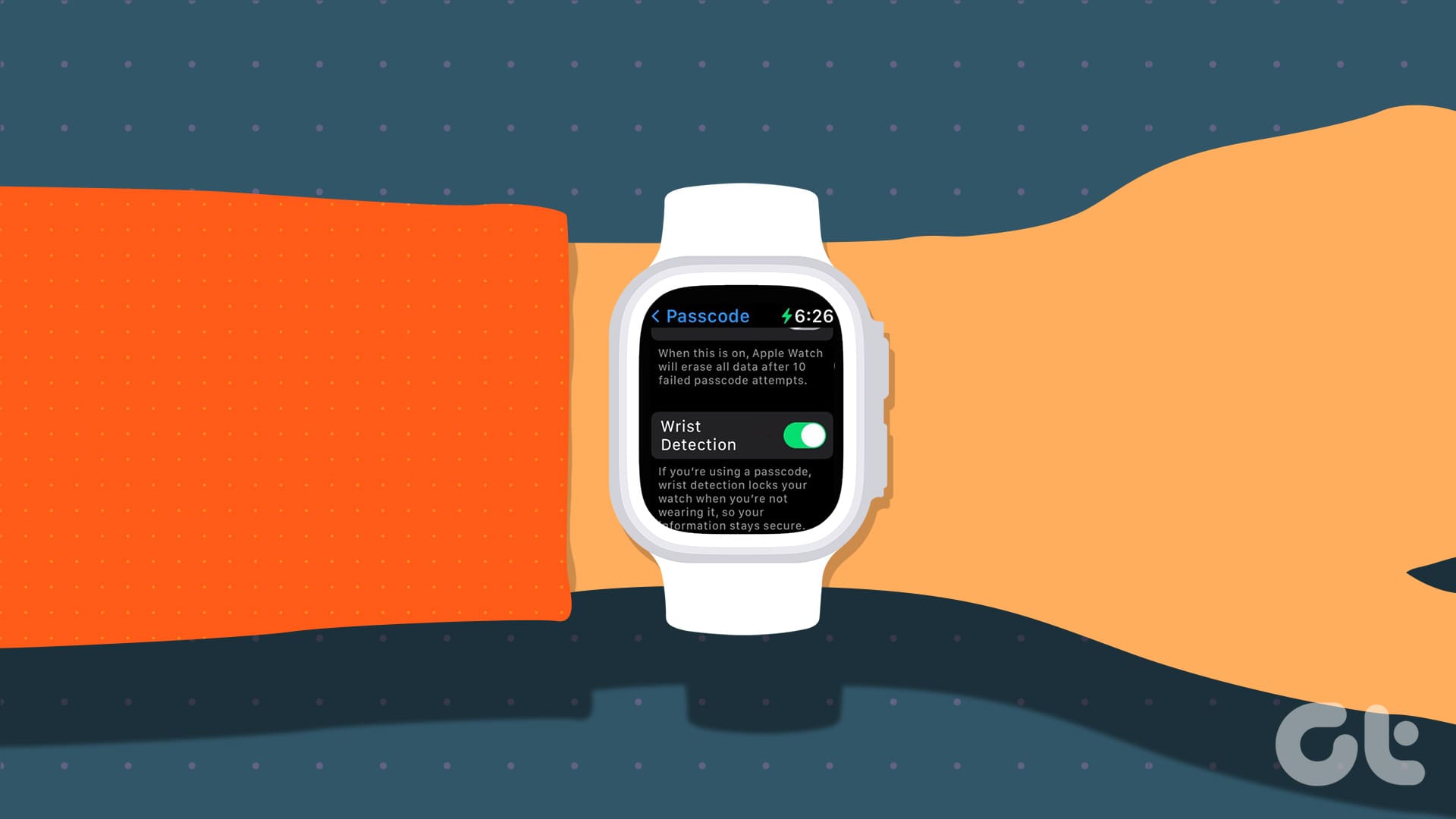
Open the Watch app on your iPhone and tap Passcode. Ensure Wrist Detection is turned ON. If disabled, the watch locks immediately and stops heart rate monitoring, which is essential for sleep tracking.
Turn On Fitness and Heart Rate Tracking
Go to the Watch app and tap Privacy. Enable both Heart Rate and Fitness Tracking. On your iPhone, go to Settings, then Privacy and Security, then Motion and Fitness, and ensure Fitness Tracking is ON. Without these settings enabled, no motion or health data reaches Apple Health.
Fix Bluetooth and Sync Issues
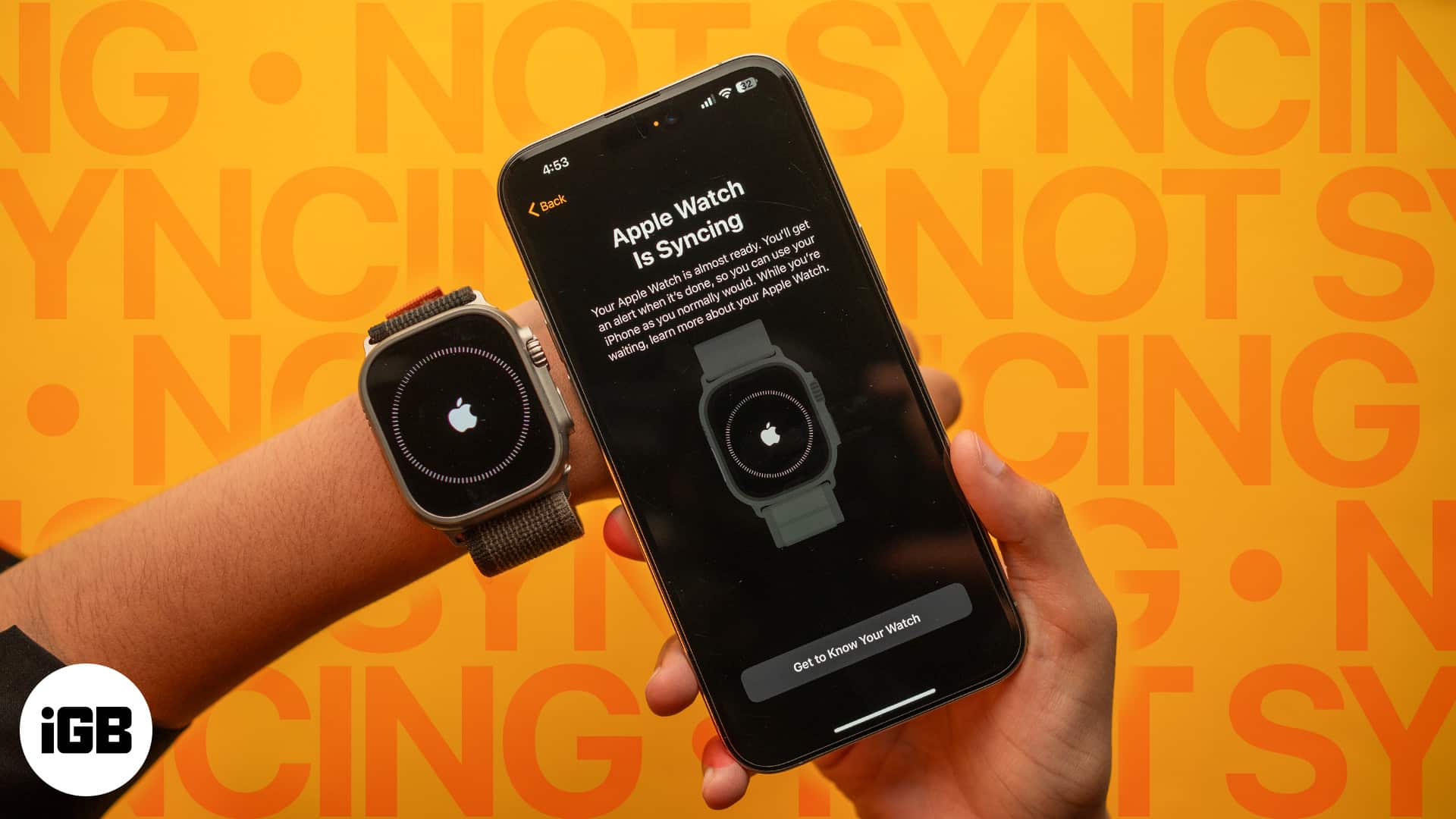
Pillow needs data transferred from Apple Watch to iPhone. Bluetooth or Wi-Fi handles this transfer, which often happens right after you wake up. Connectivity issues are a frequent culprit behind missing sleep data.
Keep Bluetooth On
Ensure Bluetooth is enabled on your iPhone. Disable Airplane Mode before checking your sleep data, as Airplane Mode blocks all communication between devices.
How long to wait: Sync can take 2 to 10 minutes after waking. Do not panic if data is not instant.
Stay on Same Wi-Fi Network
If using Wi-Fi sync, both devices must be on the same network. Avoid turning off Wi-Fi on either device overnight, as this can prevent data from transferring properly.
Tip: Place your iPhone near your bed. Distance can delay or block Bluetooth sync.
Unlock Apple Watch Before Sleep
A locked Apple Watch with a passcode may restrict sensor data access. This is an often overlooked issue that prevents third-party apps from reading health data.
Enter Passcode Nightly
Unlock the watch before going to bed by entering your passcode. This allows continuous heart rate and motion tracking throughout the night without restrictions.
Why it matters: Encrypted sensors may limit third-party app access when locked, even if the watch is worn.
Update Pillow to Latest Version
Outdated apps often fail after iOS or watchOS updates. Compatibility issues between old app versions and new operating systems can break sleep tracking functionality entirely.
Install Latest App Version
Open the App Store on your iPhone and tap your profile icon. Scroll to find Pillow in your apps list. Tap Update if an update is available. Keeping the app updated ensures compatibility with the latest iOS and watchOS features.
Fact: 60 percent of tracking issues resolve after updating, especially after iOS 17.
Start Sleep Session in Manual Mode
If automatic tracking is disabled, you must manually begin each session. Many users don’t realize they need to actively start tracking if automatic mode is turned off.
Begin Tracking Correctly
Open Pillow on your iPhone and keep it running in the background. Open Pillow on your Apple Watch and tap the sleep icon in the bottom left corner. Select a preset to start tracking.
Warning: Closing the iPhone app may stop tracking. Leave it running in the background.
Use Automatic Mode Instead
Enable Auto Sleep Tracking in Pillow settings. This lets the app detect sleep using motion and heart rate patterns automatically, eliminating the need for manual input each night.
Run Pillow Diagnostic Tool
Skip guessing. Use the app’s built-in checker to determine whether data exists in Apple Health or if the issue lies elsewhere.
Test Data Availability
Open Pillow and go to Settings, then Apple Health Diagnostics. Pick a past date when sleep should have been recorded and tap Check. If the result shows “Apple Health data found,” the watch recorded data and the issue is with Pillow sync or display. If it shows “No data found,” the watch did not record data, so focus on Apple Watch settings.
Key Insight: If no data appears here, the problem is not Pillow. It is the Apple Watch configuration.
Reinstall the Pillow App
Corrupted installations block permission registration and background processes. When basic fixes fail, a fresh installation often resolves persistent issues.
Reset App Completely
Delete Pillow from your iPhone and restart your device to clear residual cache. Reinstall the app from the App Store and open it to re-grant all Health permissions. This clean slate often fixes hidden configuration problems.
Success Rate: Fixes approximately 25 percent of persistent tracking failures.
Unpair and Re-pair Apple Watch
This is a last resort for deep system issues that cannot be resolved through simpler methods. Use it only when all other steps have failed.
Set Up as New Watch
In the Watch app, unpair your device. When setting up again, choose “Set up as new Apple Watch” instead of restoring from backup. Restore backups can bring back corrupted health settings or disabled sensors that caused your original issues.
Why avoid backup: Restoring can reintroduce the same faulty settings that caused your tracking problems.
Prevent Future Tracking Failures
Build a reliable nightly routine to avoid recurring issues. Prevention is always easier than troubleshooting.
Nightly Checklist
Wear your Apple Watch to bed. Charge it to at least 30 percent. Unlock the watch with your passcode. Keep your iPhone nearby with Bluetooth ON.
Weekly Maintenance
Check for Pillow updates in the App Store weekly. Verify that all Health permissions remain enabled. Clean your Apple Watch sensor with a soft, dry cloth to maintain accurate readings.
Avoid These Risks
Never disable Wrist Detection. Avoid using Airplane Mode without syncing data after waking. Never sleep with your watch in Power Reserve mode.
Contact Pillow Support
If all else fails, get direct help from the experts. Most issues can be resolved with the steps above, but some may require intervention from the development team.
Submit a Helpdesk Ticket
Open Pillow, go to Settings, and select Helpdesk. Describe your issue in detail and attach your diagnostic results, such as “No data found on January 15.” Include your iPhone and Apple Watch models, your iOS and watchOS versions, and whether you use automatic or manual mode.
Note: Support uses Intercom, and response time is typically under 24 hours.
Key Takeaways for Fixing Pillow Sleep Tracking
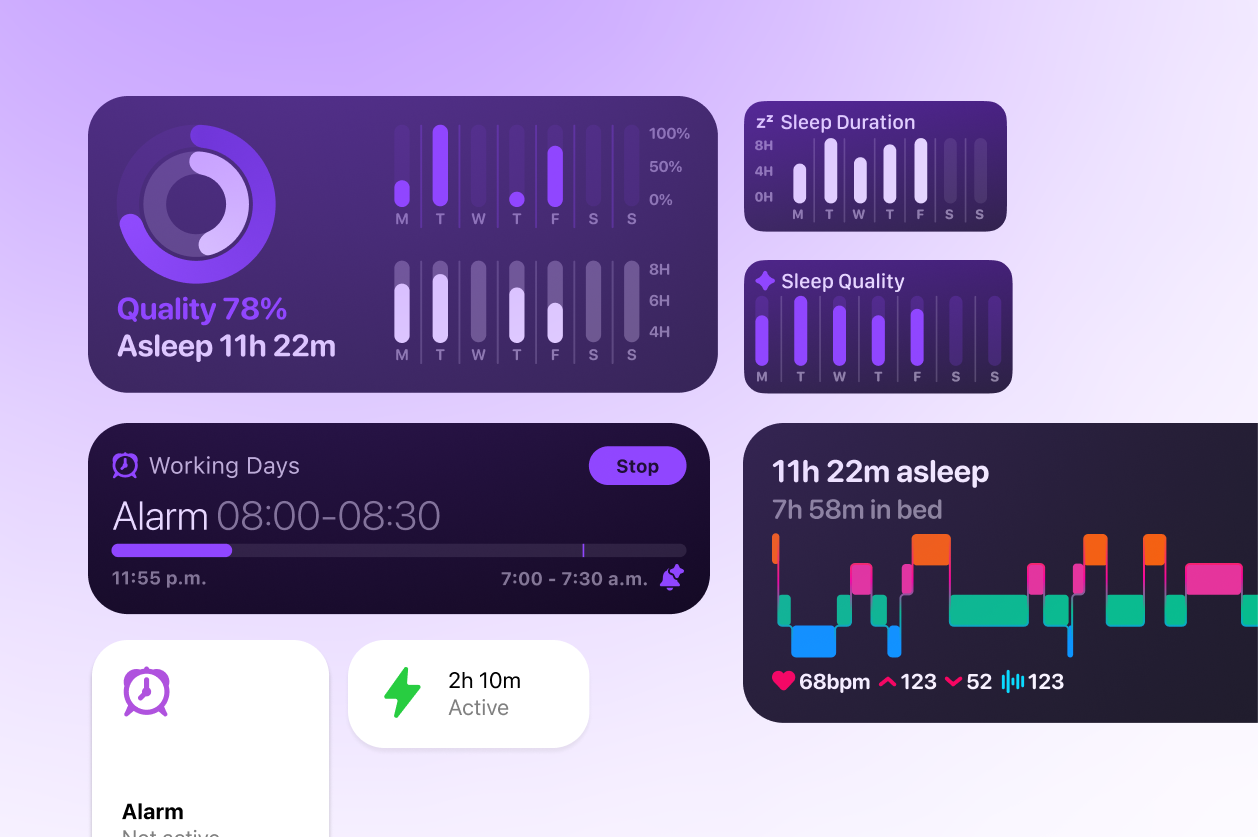
The Pillow app not tracking sleep is almost always fixable. Start with permissions and wear habits, as these solve most cases. Use the diagnostic tool to pinpoint whether the issue is with data capture or app sync. Keep your software updated, wear your watch properly, and let automatic tracking do the work. With these steps, you will restore reliable sleep insights night after night.
Frequently Asked Questions About Pillow Sleep Tracking
Why does Pillow say “Insufficient data for sleep detection”?
This message appears when Pillow cannot access enough physiological data to analyze your sleep. Check Apple Health permissions first, then verify your Apple Watch was worn all night with sufficient battery.
How long does it take for sleep data to sync after waking?
Data typically syncs within 2 to 10 minutes after waking. Keep Bluetooth enabled and your devices close together during this time.
Does Pillow work without an Apple Watch?
No. Pillow requires an Apple Watch to track sleep. The app cannot function with iPhone sensors alone.
Can tattoos affect Apple Watch sleep tracking?
Yes. Tattoos can block the optical heart rate sensor, leading to inaccurate or missing data. Try rotating the watch to a less tattooed area of your wrist.
Should I use automatic or manual sleep tracking?
Automatic mode is recommended for most users. It reduces the chance of forgetting to start tracking and uses watchOS background processes for seamless data collection.
What should I do if reinstalling Pillow does not fix the issue?
Unpair and re-pair your Apple Watch as a new device. If the problem persists, contact Pillow support with your diagnostic results for further assistance.